Apple Pay Requirements

Supported Devices

Supported Devices

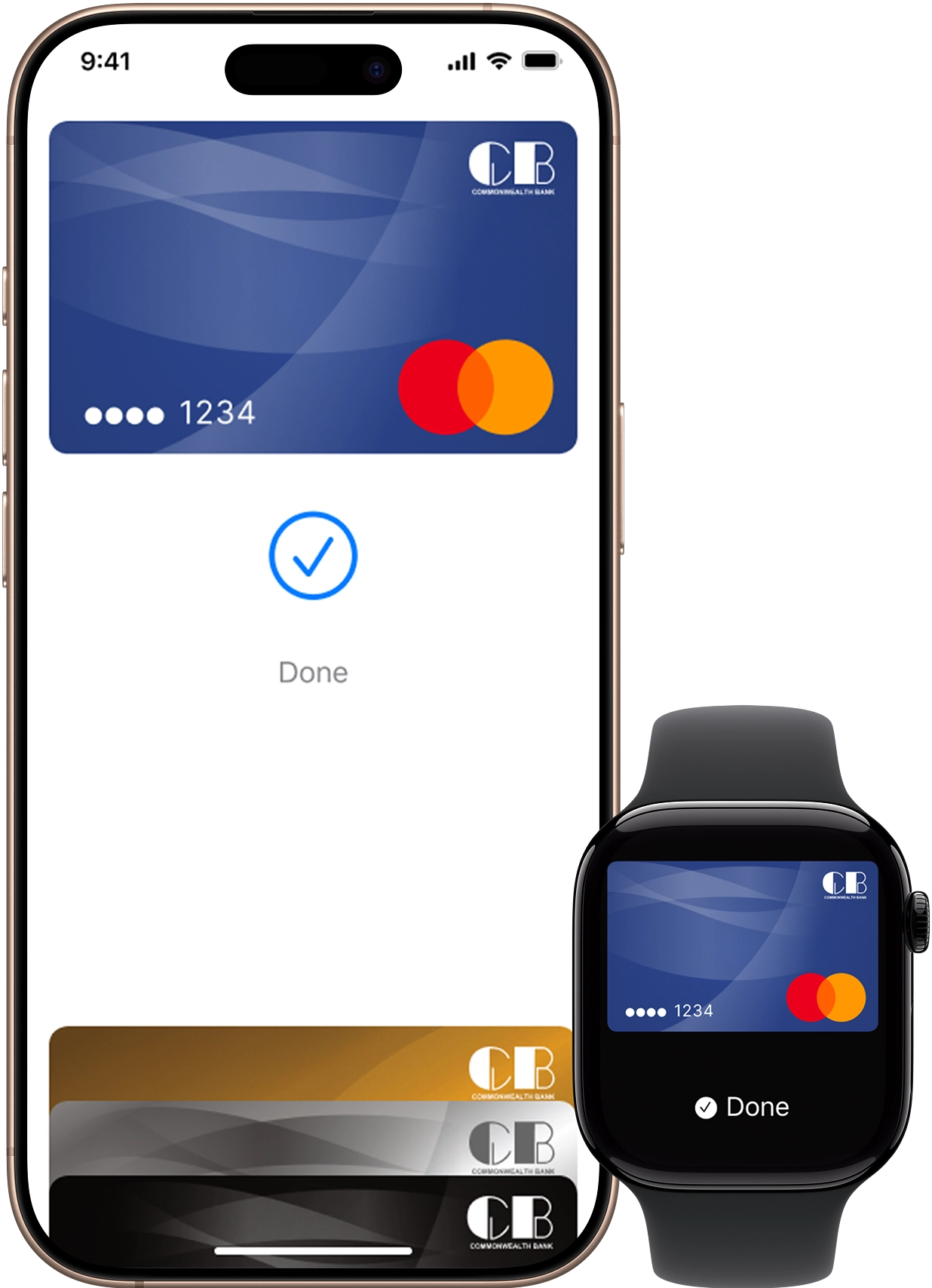
A device that is always at hand: iPhone starting from SE model and Apple Watch Series 1 and later.

Settings

Settings

Enabled Touch ID / Face ID and authorization in iCloud. The latest version of the CB Wallet app or the Apple Wallet

Any Commonwealth Bank Card

Any Commonwealth Bank Card

All Commonwealth Bank Cards support payment with Apple Pay. The latest version of the CB Wallet app or the Apple Wallet

Connecting Your Device

  1. Open the Wallet App and tap the “+” icon in the upper right corner
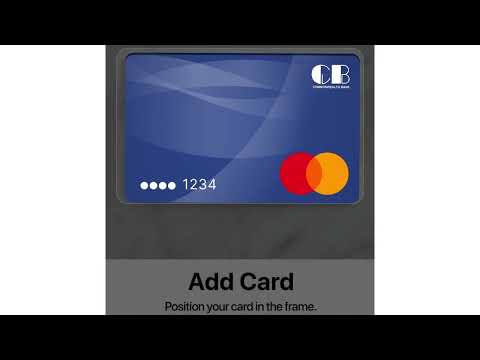
  2. Add the card number manually or photograph it using your iPhone's camera.
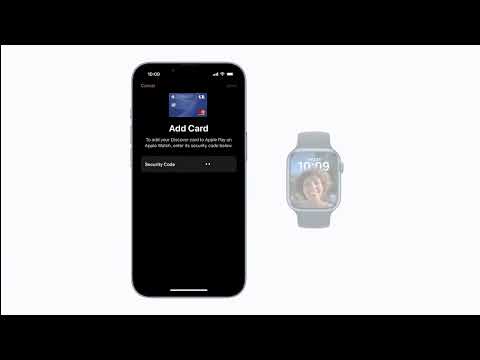
  3. Verify the entered data and enter the card security code (3 digits on the back of the card).
  1. Open the CB Wallet App.
  2. Tap on the Apple Pay block at the top of the screen, then "Start".
  3. Tap "Add to Apple Wallet". All fields will auto-fill. Then accept the user agreement and wait for confirmation in Apple Wallet.
  1. Open the Wallet App and tap the “+” icon in the upper right corner
  2. Add the card number manually or photograph it using your iPhone's camera.
  3. Verify the entered data and enter the card security code (3 digits on the back of the card).
  1. Set up cards beforehand in the Watch app on your iPhone under Wallet & Apple Pay.
  2. Double-click the side button to open Apple Pay when you're ready to pay.
  3. Hold the watch display near the contactless reader until you feel a tap and hear a beep confirming payment.

Where To Use

One Touch Payments Everywhere

From your favorite local spots to movie theaters, cafes, and hotels - enjoy seamless payments with your iPhone or Apple Watch. Simply look for the Apple Pay logo at the terminal for quick, contactless payments.

Where To Use
We use cookies

By using our website you agree to our Privacy Policy.

Ok, Thanks